How to manage a campaign and update the creator brief
 Chad Smalley
Published November 14, 2026 · Last updated November 14, 2026
Short answer
To manage a campaign on UGC LATAM, open Campaigns and click the campaign. The Overview tab holds the configuration, the creator brief and the budget. Open Creator brief and click Edit on any block to update the description, references, guidelines, scripts or shot list. Changes are translated for creators automatically, even while the campaign is live.
In this video
Steps
Open Campaigns and click a campaign. A red button on a card means videos are waiting for your review.
Use the header to check the status, preview the campaign as creators see it, pause it or change its end date.
In the Overview tab, open Creator brief.
Click Edit on any block, make your change in the side panel and save. It is translated to Spanish and Portuguese for your creators.
In Video References, click Edit, paste a link to an example video, click Add URL and save.
In Video Scripts, click Edit to write hooks and talking points, or click Insert from Content Genie.
Use Budget, Creators, My videos and Analytics to follow payments, active creators, submitted videos and results.
Part of our guide: all UGC LATAM video guides
Transcript
Once a campaign exists, you manage it from its own page. The most important part is the creator brief, because it is what your creators follow. Open Campaigns and click a campaign.
A red button on a card means videos are waiting for your review. The header shows the campaign status. Preview shows the campaign the way creators see it.
You can pause a campaign, which stops new applications, and change its end date. The Overview tab has three sections: Overview, Creator brief and Budget. Overview shows the campaign configuration, the details and the creator demographics.
The checklist on the right shows what is complete. Now open Creator brief. It has a block for each part of the brief: campaign description, product references, video references, content guidelines, video scripts and the suggested shot list.
Every block has its own Edit button. Click Edit, make your change in the side panel and save. What you write is translated to Spanish and Portuguese for your creators automatically.
You can keep updating the brief at any time, even while the campaign is live. A live campaign shows a warning before you save, so keep the brief current as you learn what works. Use Video References to show creators the editing style you want.
Click Edit, paste a link to an example video from Instagram, TikTok or YouTube, click Add URL, then save your changes. Video Scripts gives creators their hooks and talking points. Click Edit to write them yourself, or click Insert from Content Genie, tick the hooks and scripts you want, and insert them.
Content Genie has its own tutorial. Budget shows your creators, videos per creator and price per video, plus what is ready for payment and what you have paid. The Creators tab lists your active creators, with their status, the videos they have delivered and a shortcut to your messages.
Invited and Applications show who is still on the way in. My videos groups every submitted video by creator, with filters for videos to review, revisions and approved videos. Analytics shows posts, views, likes and engagement once your creators start posting.
Next, learn how to review, revise and approve videos.
Frequently asked questions
What is in the creator brief on UGC LATAM?
The creator brief has a block for each part: campaign description, product references, video references, content guidelines, video scripts and the suggested shot list. Each block has its own Edit button.
Can a brand edit the creator brief while a campaign is live?
Yes. You can update the brief at any time, including while the campaign is live. A live campaign shows a warning before you save. What you write is translated to Spanish and Portuguese for your creators automatically.
How does a brand show creators the editing style it wants?
Use Video References in the creator brief. Click Edit, paste a link to an example video from Instagram, TikTok or YouTube, click Add URL and save your changes.
Part of our guide: campaign management on UGC LATAM
Related
Answers brands ask before starting
Straight answers from the UGC LATAM team — updated as the platform evolves.
What is in the creator brief on UGC LATAM?
The creator brief has a block for each part: campaign description, product references, video references, content guidelines, video scripts and the suggested shot list. Each block has its own Edit button.
Part of our guide: campaign management on UGC LATAM
Can a brand edit the creator brief while a campaign is live?
Yes. You can update the brief at any time, including while the campaign is live. A live campaign shows a warning before you save. What you write is translated to Spanish and Portuguese for your creators automatically.
How does a brand show creators the editing style it wants?
Use Video References in the creator brief. Click Edit, paste a link to an example video from Instagram, TikTok or YouTube, click Add URL and save your changes.
Watch next
Campaigns
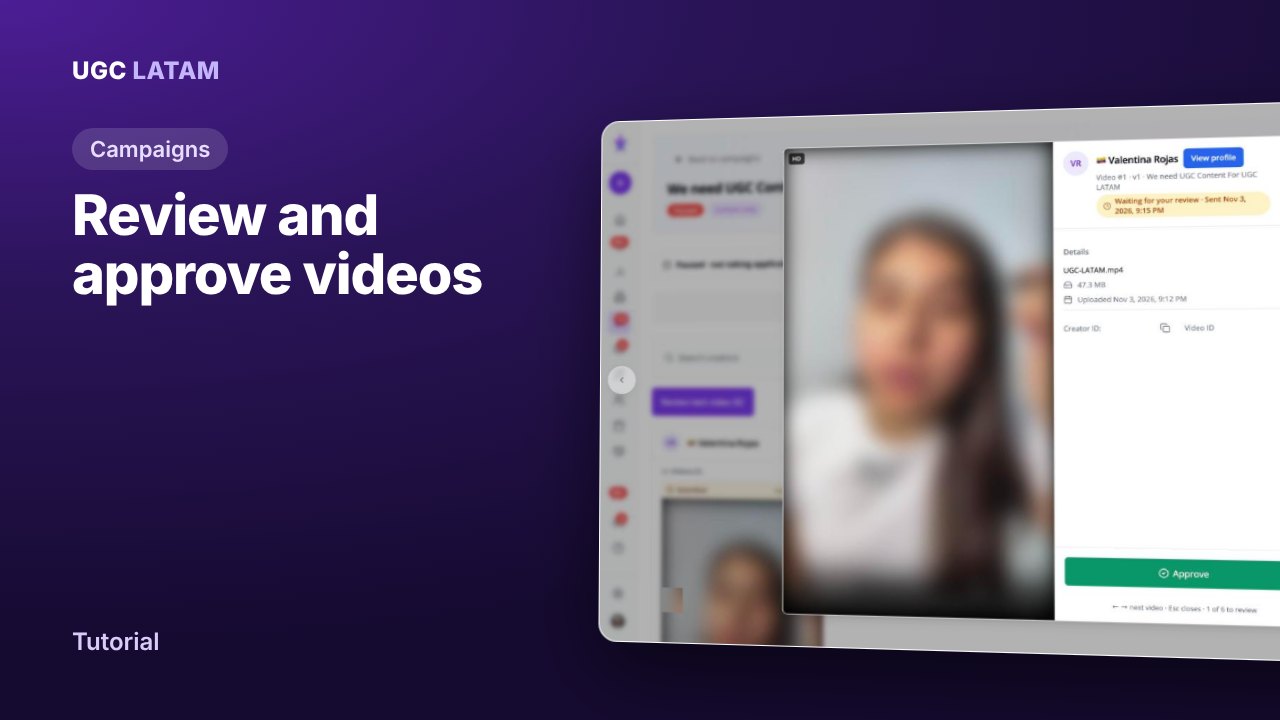
How to review, revise and approve creator videos
Campaigns
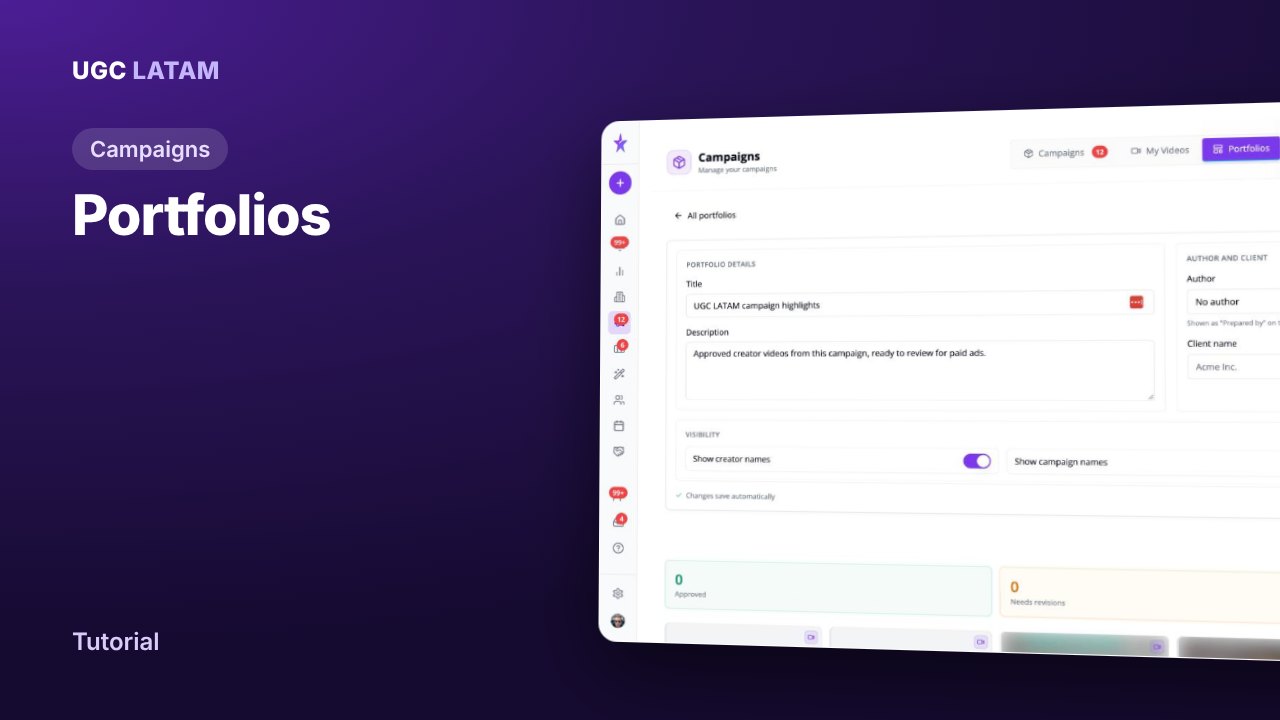
How to build and share a portfolio of approved videos
Campaigns