How to review, revise and approve creator videos
 Chad Smalley
Published November 14, 2026 · Last updated November 14, 2026
Short answer
To review creator videos on UGC LATAM, open Campaigns and click the red button on the campaign card to reach My videos. Watch each video against your brief, then click Request revision with numbered notes or Approve. After approval, pay the creator, set the payment to Completed and give a rating to unlock downloads.
In this video
Steps
Open Campaigns and click the red button on a campaign card to go to My videos.
Click Review next video, or click any video.
Watch the whole video against your creator brief.
If it needs changes, click Request revision, add up to ten numbered notes and click Send revisions.
When the video is right, click Approve, then confirm. An approval cannot be undone.
Click Pay details, pay the creator with their saved method, then change the payment status from Pending to Completed.
Click Give Rating and rate speed of delivery, communication and video quality. Submitting the rating unlocks your video downloads.
Part of our guide: all UGC LATAM video guides
Transcript
When creators deliver, their videos land in My videos. Here is how to review them, request revisions, approve them, record the payment and rate the creator. Open Campaigns.
A red button on a campaign card shows how many videos are waiting. Click it to go straight to My videos. Videos are grouped by creator.
The filters show what is waiting for your review, what is in revision and what is approved. Click Review next video, or click any video. It opens with the creator, the video number and the version.
Open Details for the file information. Watch the whole video against your creator brief. Use the arrows to move between videos.
If it needs changes, click Request revision. Add up to ten numbered notes, one change per note, then click Send revisions. The video moves to Revisions.
When the creator uploads a new version, it comes back to your review list as version two. When the video is right, click Approve, then confirm. An approval cannot be undone.
The video moves to Approved, and the payment for that creator becomes pending. Now the payment. Click Pay details to see the creator's saved payment information, and pay them with that method.
After you pay, change the payment status from Pending to Completed. The creator is then marked Completed, and a Give Rating button appears. Rate speed of delivery, communication and video quality from one to five stars.
The campaign score is the average. Submitting the rating unlocks your video downloads, and ratings are final. Next, meet Content Genie, which writes hooks and scripts for your campaigns.
Frequently asked questions
How does a brand request changes to a creator's video?
Open the video and click Request revision. Add up to ten numbered notes, one change per note, then click Send revisions. The video moves to Revisions, and the new upload comes back to your review list as version two.
Can a video approval be undone on UGC LATAM?
No. An approval cannot be undone. Once you approve, the video moves to Approved and the payment for that creator becomes pending, so watch the whole video against your creator brief first.
What unlocks the download of an approved video?
Pay the creator using their saved payment details, change the payment status from Pending to Completed, then rate the creator on speed of delivery, communication and video quality. Submitting the rating unlocks your video downloads.
Part of our guide: campaign management on UGC LATAM
Related
Answers brands ask before starting
Straight answers from the UGC LATAM team — updated as the platform evolves.
How does a brand request changes to a creator's video?
Open the video and click Request revision. Add up to ten numbered notes, one change per note, then click Send revisions. The video moves to Revisions, and the new upload comes back to your review list as version two.
Part of our guide: campaign management on UGC LATAM
Can a video approval be undone on UGC LATAM?
No. An approval cannot be undone. Once you approve, the video moves to Approved and the payment for that creator becomes pending, so watch the whole video against your creator brief first.
What unlocks the download of an approved video?
Pay the creator using their saved payment details, change the payment status from Pending to Completed, then rate the creator on speed of delivery, communication and video quality. Submitting the rating unlocks your video downloads.
Watch next
Campaigns
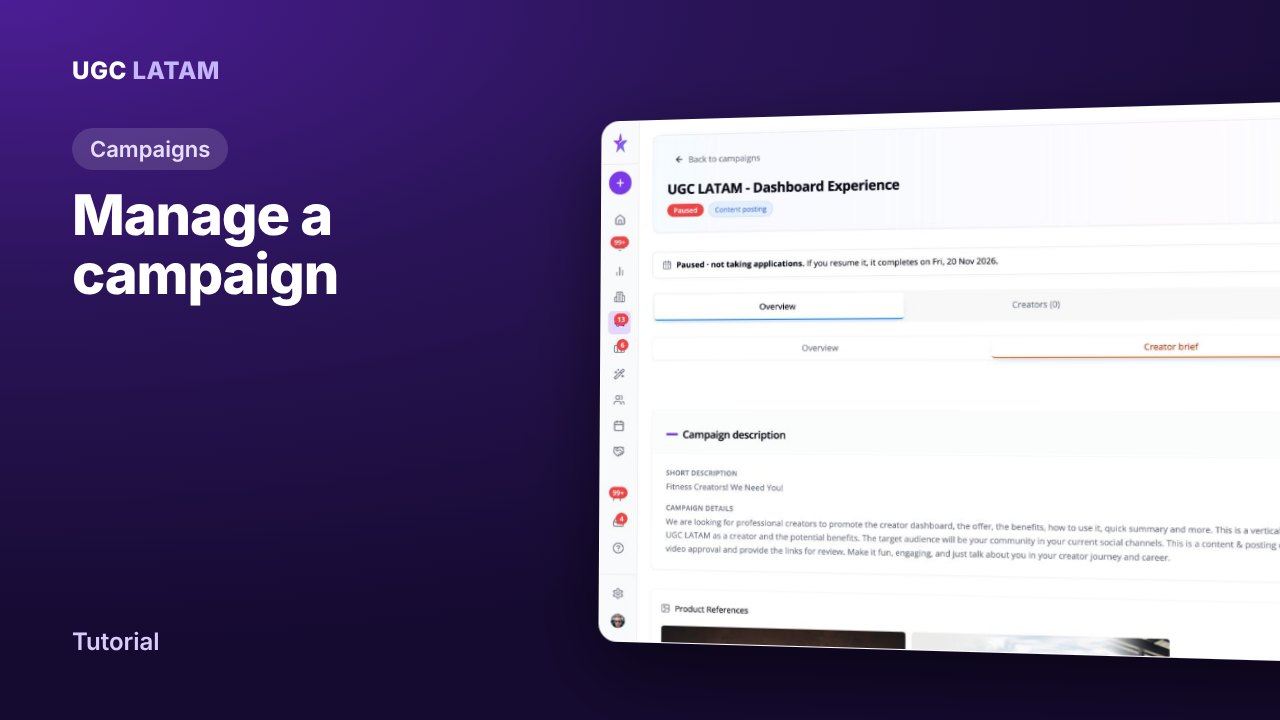
How to manage a campaign and update the creator brief
Campaigns
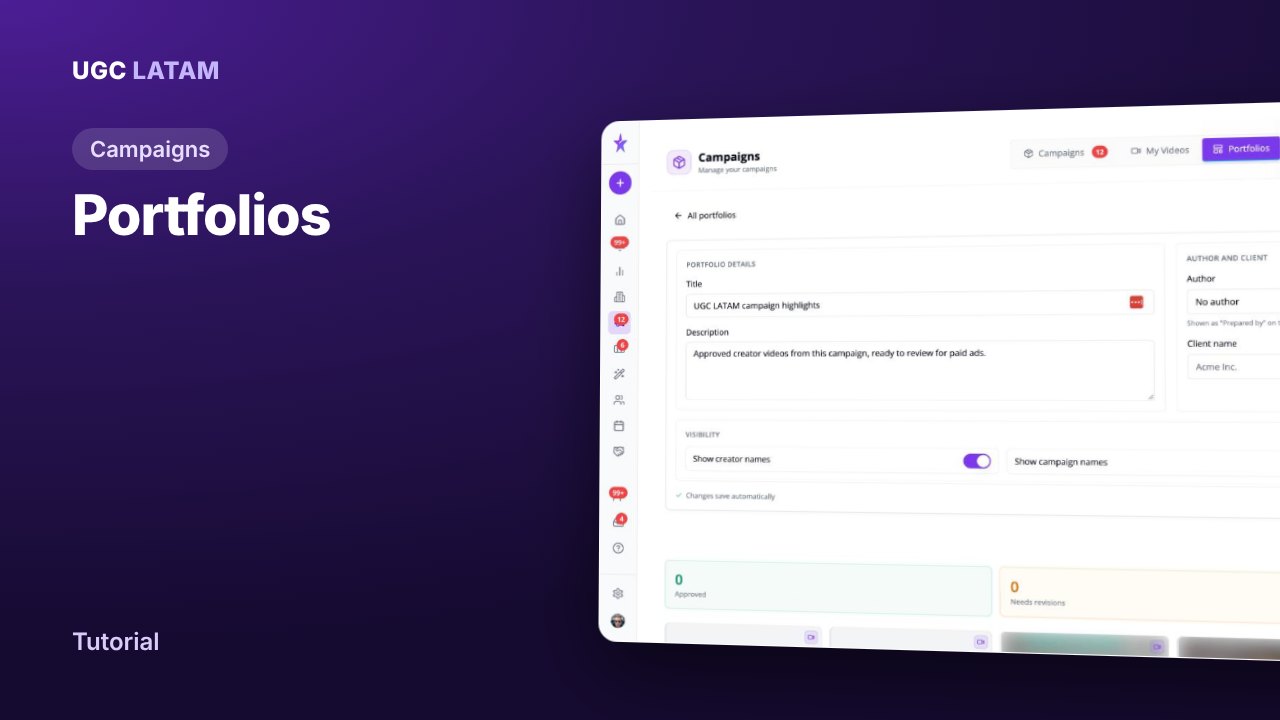
How to build and share a portfolio of approved videos
Campaigns